.png)
Automatic Replies in Chekkit
How to Use Automatic Replies in Chekkit
Automatic replies help your business stay responsive by sending an instant message when a customer reaches out. You can use them to confirm you’ve received a message, or to let customers know when you’re closed.
Accessing Auto-Reply Settings
- Log in to your Chekkit Dashboard.
- From the left-hand menu, go to Settings → Auto-Reply & Media.
- You’ll see three main sections: Automatic Reply Settings, Missed Call Message, and Media Settings.

Note: Missed Call Text Back requires the incoming call to pass through Chekkit. It works with Chekkit-provided texting numbers even without Chekkit Voice, but it will not trigger for hosted business landlines where voice calls remain with the existing phone provider.
For more information, see How Calls and Missed Call Text Back Work With Your Chekkit Number.
Setting Up Your Automatic Replies
1. Automatic Reply
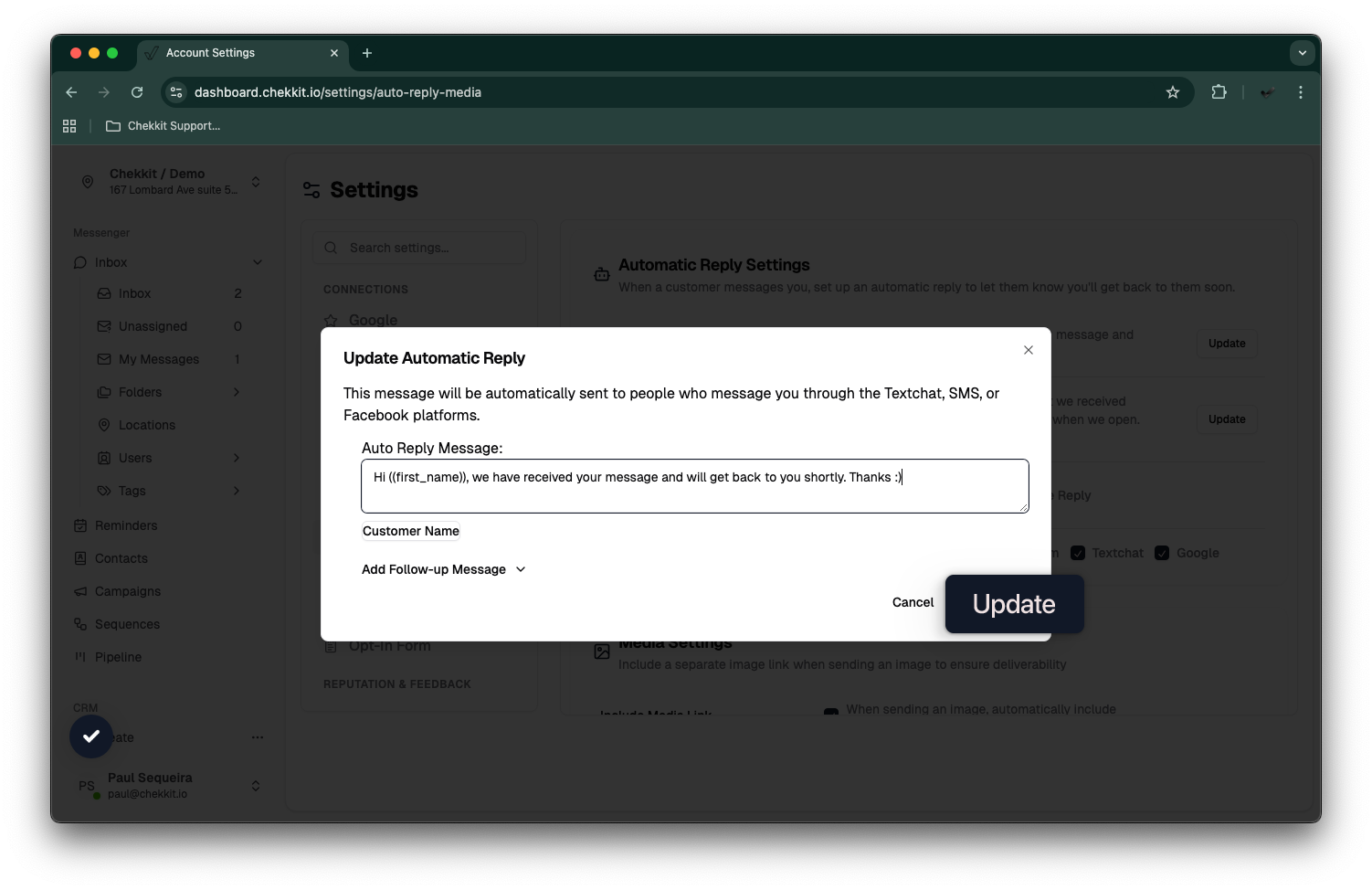
This message is sent immediately when a customer contacts you during normal business hours.
-
Example:
"Hi {{first_name}}, we have received your message and will get back to you shortly. Thanks!"
To edit this message:
- Click Update next to Automatic Reply.
- Enter your custom message.
- Click Update.
2. Out of Office Automatic Reply
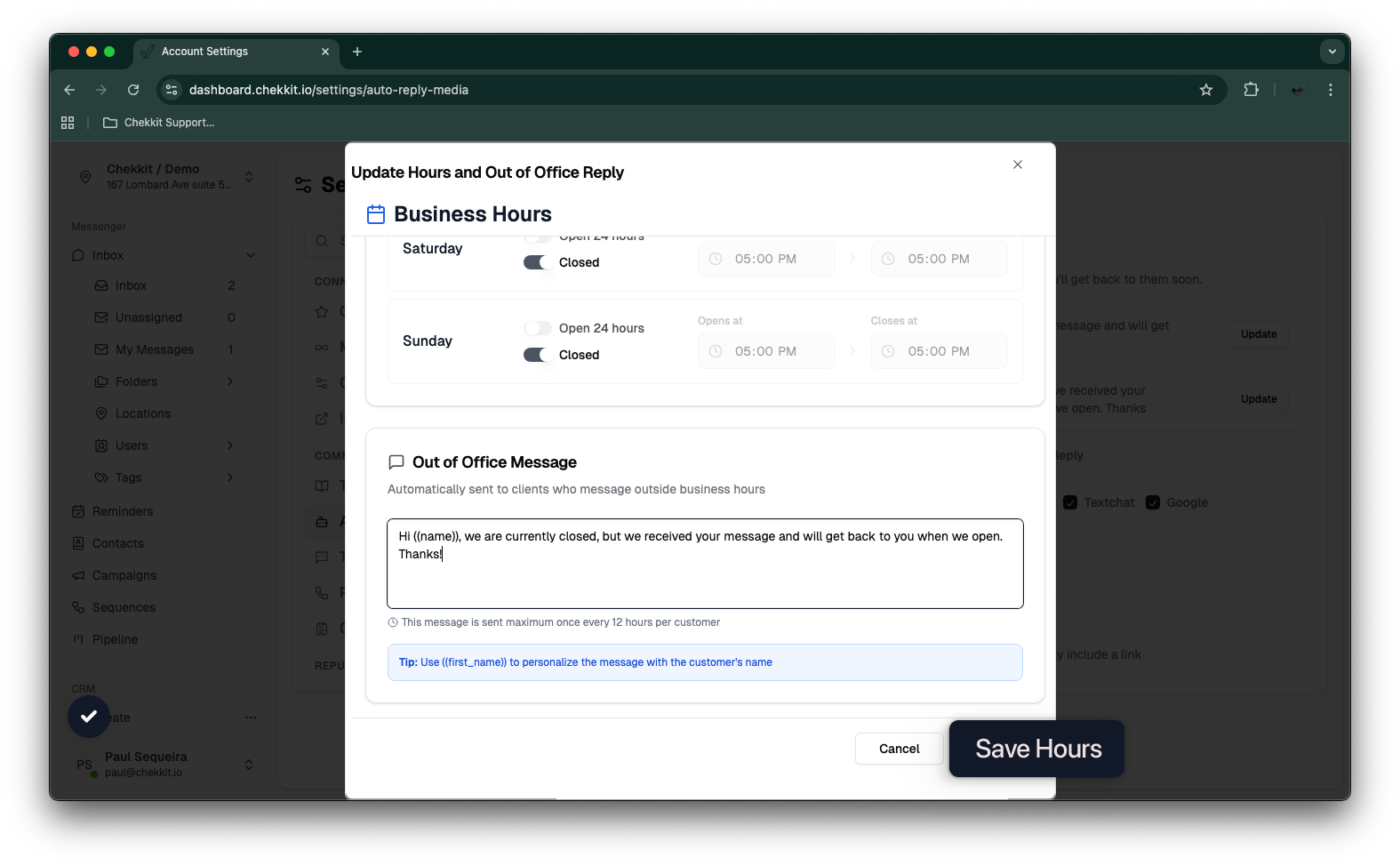
This message is used when your business is closed or unavailable.
-
Example:
"Hi {{first_name}}, we are currently closed, but we received your message and will get back to you when we open. Thank you!"
To edit this message:
- Click Update next to Out of Office Automatic Reply.
- Customize your message and preferences.
- Click Save Hours.
3. Activating Replies
Below your messages, you can toggle which reply types are active:
- Automatic Reply
- Out of Office Reply
- Missed Call Message
Enable one or both, depending on your preference.
4. Choosing Channels
You can choose which channels your auto-replies apply to:
- SMS
- Textchat
Check or uncheck each channel as needed.
Media Settings (Optional)
If you often send images, you can choose to include a media link automatically for better deliverability.
- Toggle Include Media Link on/off with this option.
Best Practices
- Keep replies short, friendly, and informative.
- Always include the customer’s name placeholder "{{first_name}}" for a personalized touch.
- Update your out-of-office message before holidays or known closures.
- Review your messages occasionally to ensure they match your current brand tone.