.png)
Chekkit Voice: Features Guide
Overview
Chekkit Voice allows your business to make and receive phone calls directly within the Chekkit platform, keeping all communication (calls + SMS) in one place.
With Voice, you can:
- Route incoming calls to your team
- Record and transcribe conversations
- Set up voicemail and after-hours handling
- Monitor call usage and performance
Where to Find Voice Settings
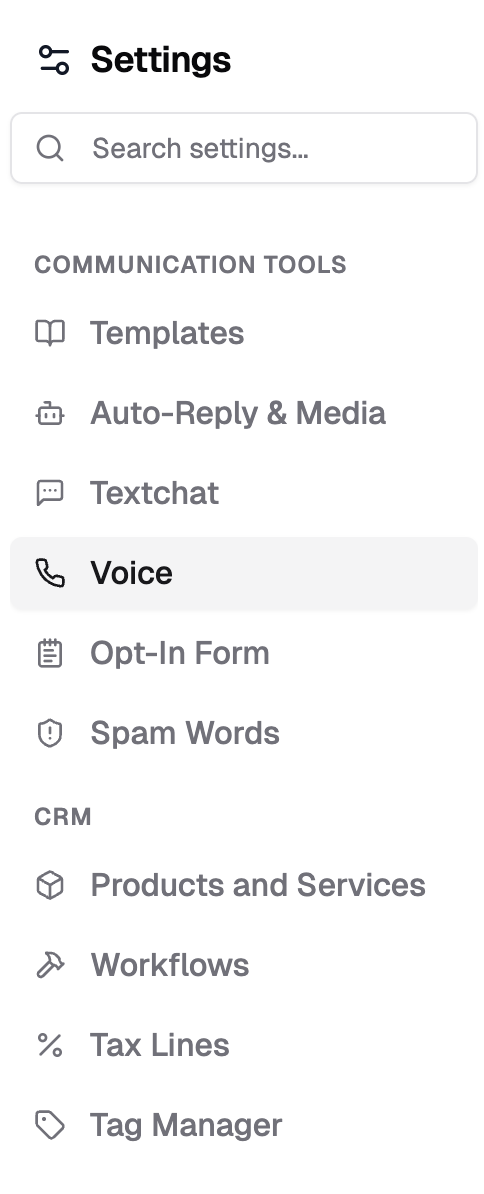
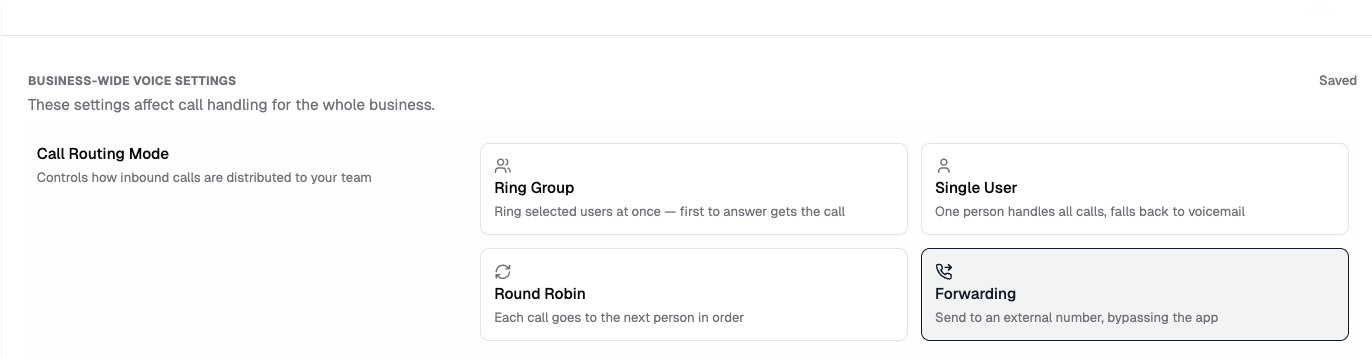
Call Routing Modes
Call routing determines how incoming calls are distributed across your team.
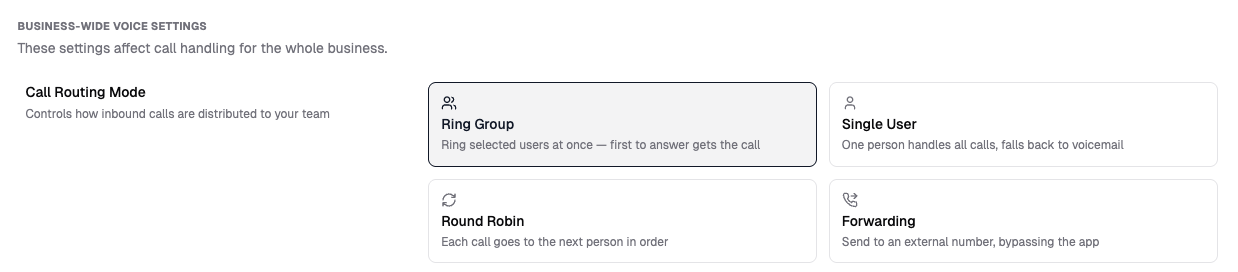
1. Ring Group
- Rings all selected users at the same time
- First person to answer takes the call
- Best for: small teams / fastest response time
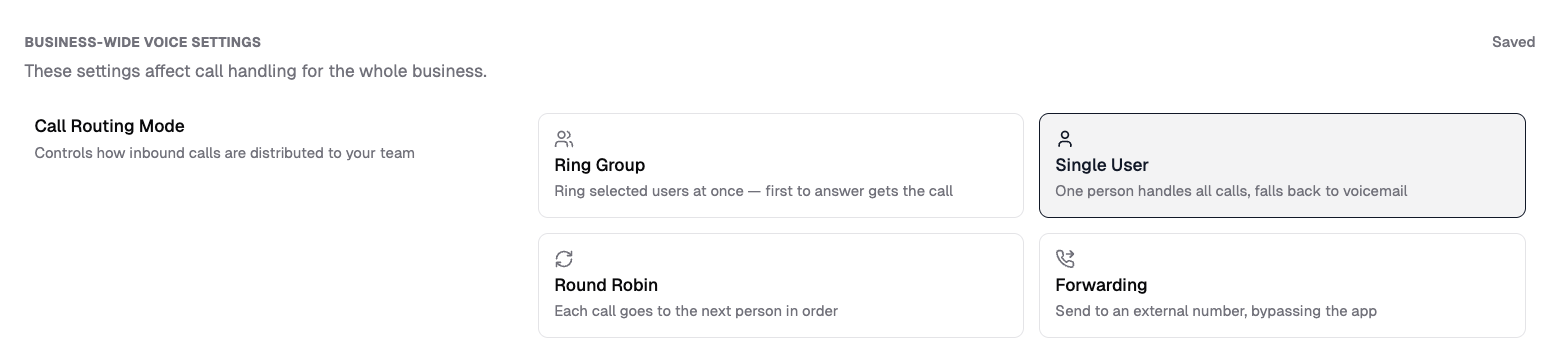
2. Single User
- Routes all calls to one designated user
- If unanswered → follows voicemail settings
- Best for: reception-style setups
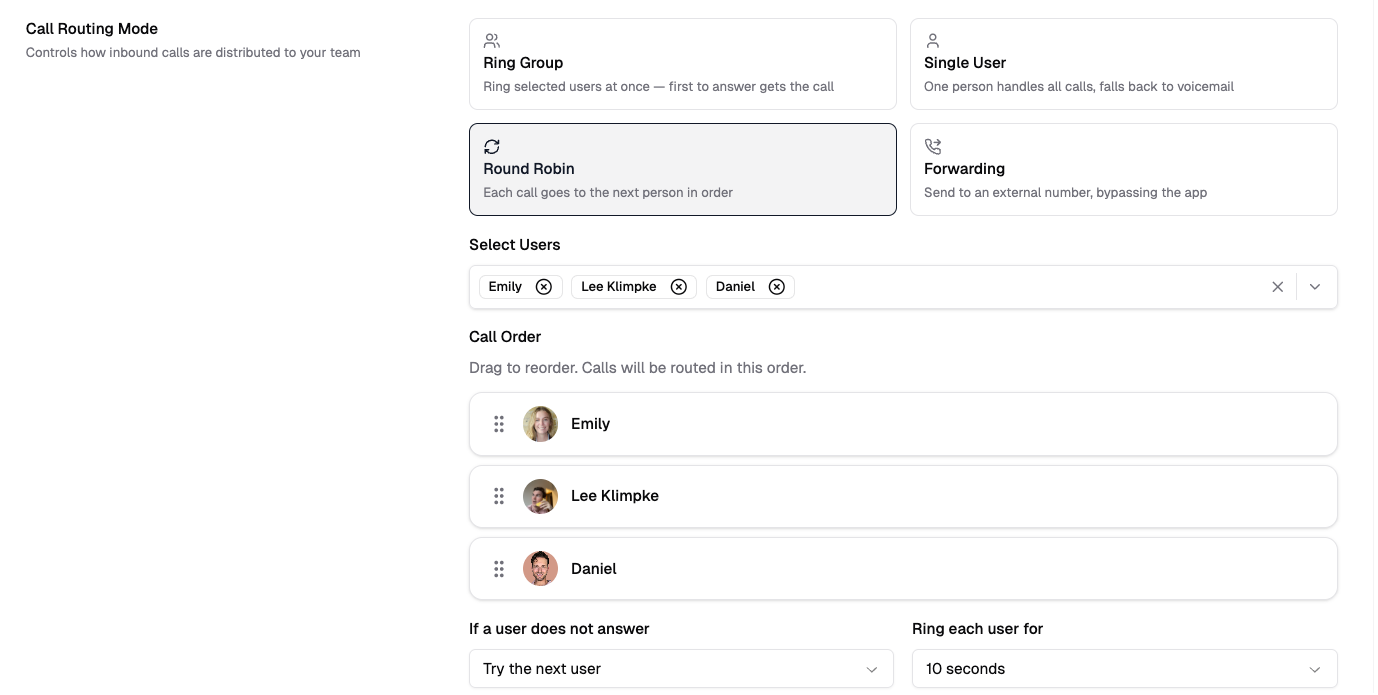
3. Round Robin
- Rotates calls one-by-one across selected users
- Distributes workload evenly
- Best for: larger teams/fairness
4. Forwarding
- Sends calls to an external phone number
- Bypasses Chekkit users entirely
-
Best for: call centers or existing phone systems
How to Configure Call Routing
-
Go to Settings → Voice
Under Call Routing Mode, select:
-
Ring Group, Single User, Round Robin, or Forwarding
Based on selection:
- Ring Group / Round Robin: choose users (up to 10)
- Single User: select the assigned user
- Forwarding: enter external phone number (Defaults to business phone number)
-
- Click Save changes
Recording & Transcription
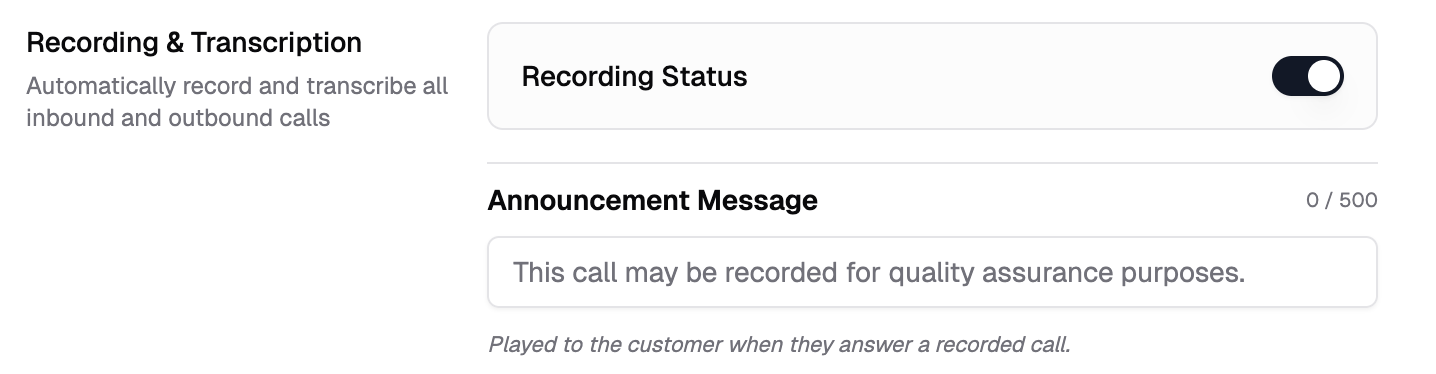
Recording Status
- Toggle ON to automatically record all calls
- Includes both inbound and outbound
Transcription
- Calls are automatically transcribed for review
- Accessible in the Inbox call log
Announcement Message
Displayed to callers before recording begins
Example:
"This call may be recorded for quality assurance purposes."
Voicemail & After-Hours Settings
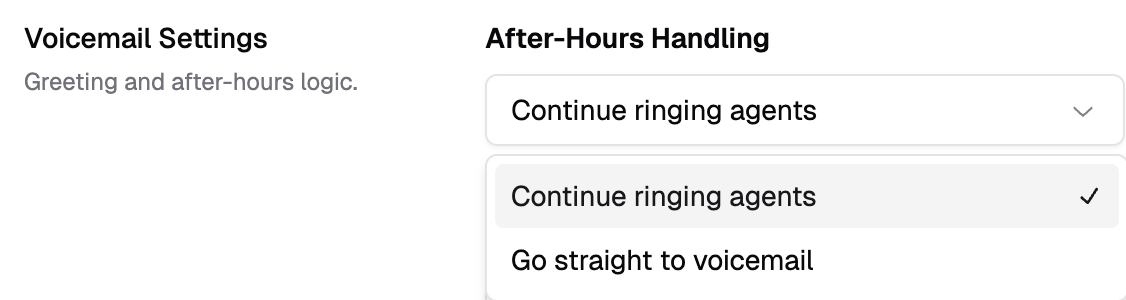
After-Hours Handling
Choose how calls are handled when your team is unavailable:
- Continue ringing agents
- Go straight to voicemail
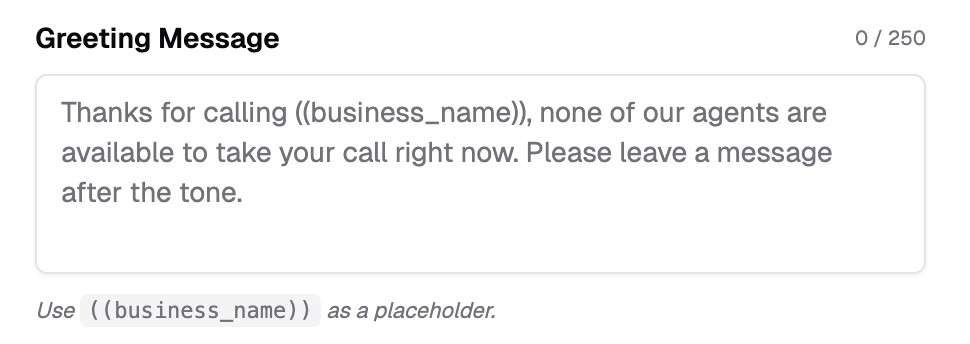
Greeting Message
This message plays when calls go to voicemail.
Default:
"Thanks for calling ((business_name)), none of our agents are available to take your call right now. Please leave a message after the tone."
You can customize this message using:
- ((business_name)) placeholder
Under Greeting Message, select Custom audio recording to use your own voicemail greeting. You can either:
- Click Record greeting to record a message using your microphone.
- Click Upload file to upload an existing audio recording.
Callers will hear your custom recording instead of the automated Chekkit greeting.

Call Logs & Inbox
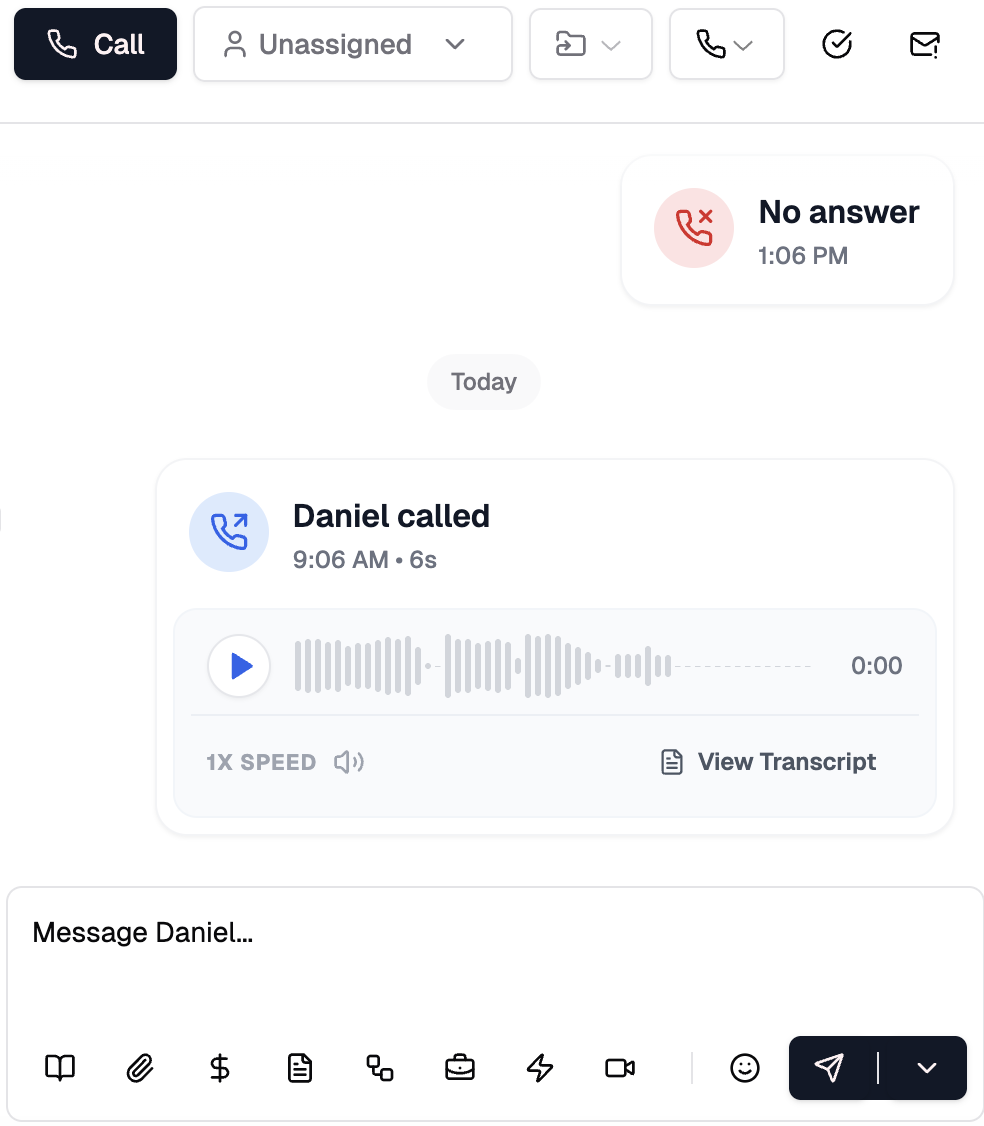
All calls appear in your Inbox, alongside messages.
You can:
- Play call recordings
- View transcripts
- See call duration and timestamps
- Track who handled the call
Call Usage & Billing
Usage Dashboard Includes:
- Total minutes used
- Total calls
- Average call duration
Monthly Limits
-
Example:
8.43 / 10,000 minutes used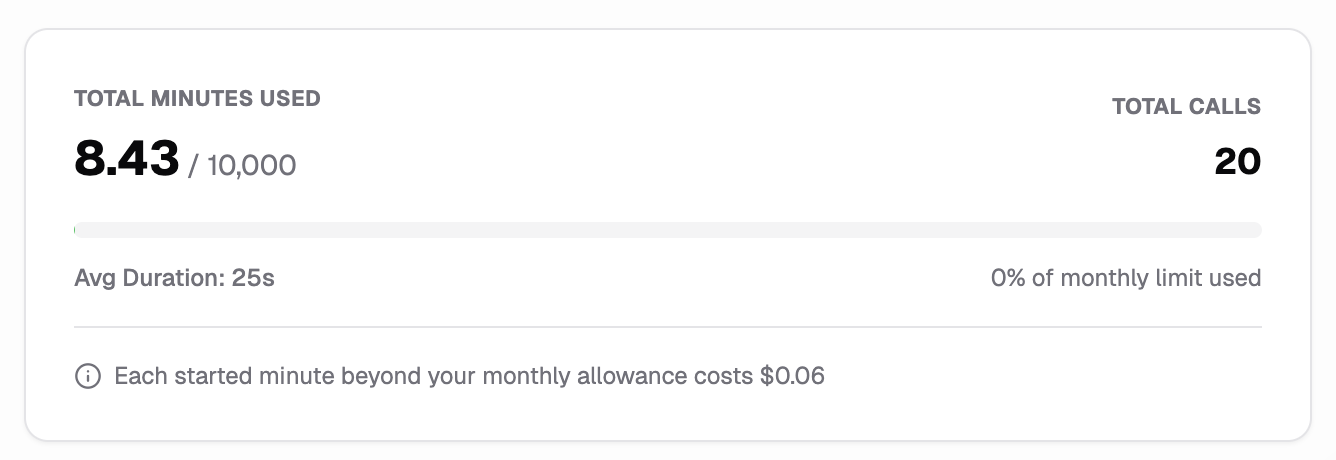
Overage
- Additional minutes billed at:
- $0.06 per started minute
FAQs
Does Voice use my existing Chekkit number?
Yes — calls are handled through your existing Chekkit number.
Can I forward calls to my personal phone?
Yes. Use Forwarding mode and enter your phone number.
Are calls recorded automatically?
Only if Recording Status is enabled.
What happens if no one answers?
- Follows your Voicemail Settings
- Can either continue ringing or go to voicemail
Can multiple people answer calls?
Yes:
- Use Ring Group for simultaneous pickup
- Use Round Robin for rotation
Where do I find call recordings?
Inside the Inbox conversation view, under each call event.
Can I use my existing landline number with Chekkit Voice?
In most cases, your number will need to be ported into Chekkit to enable Voice functionality. Porting timelines can vary and may take up to 2 weeks, depending on your provider.
Best Practices
- Use Ring Group for fast-moving teams
- Use Round Robin to balance the workload
- Always enable recording + transcription for accountability
- Customize your voicemail greeting for professionalism
- Monitor usage regularly to avoid overages