.png)
Call History: View & Manage Your Calls
Overview
The Call History section in Chekkit provides a centralized view of all inbound and outbound calls made through your account.
From here, you can:
- View all call activity across your team
- Filter calls by type or status
- Identify missed calls and voicemails
- Track call duration and timestamps
Where to Find Call History
- Log into your Chekkit dashboard
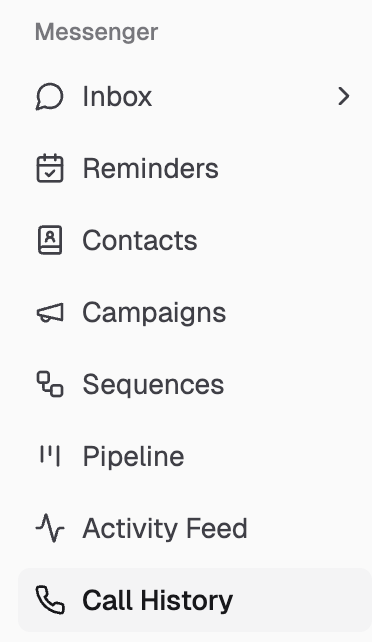
- Navigate to the left-hand menu
- Click Call History
Call History Filters
At the top of the page, you can filter calls by category:
- All – Displays all calls
- Answered – Successfully connected calls
- Missed – Calls that were not answered
- Voicemail – Calls where a message was left
- Inbound – Incoming calls from customers
- Outbound – Calls made by your team
These filters help you quickly find specific call types or issues.

Understanding the Call List
Each call entry includes key details:
- Contact Name or Phone Number
- Call Type (Inbound or Outbound)
- Call Status (Answered, Missed, etc.)
- Call Duration
- Timestamp (exact date and time)
- Call Outcome Notes (e.g., “No answer”)
Call Status Indicators
- Answered – Call was successfully connected
- No Answer – Call was not picked up
- Voicemail – Caller left a message
- Outgoing – Call was initiated by your team
How Call History Works
- All calls made through Chekkit Voice are automatically logged
- Calls are grouped by date for easy navigation
- Entries update in real time as calls occur
- Call history reflects activity across all assigned users (depending on permissions)
Common Use Cases
- Reviewing missed calls for follow-up
- Monitoring team call activity
- Tracking customer engagement
- Verifying call attempts and timing
- Auditing communication history
FAQs
Does Call History include both inbound and outbound calls?
Yes, all calls made and received through Chekkit are logged here.
Can I see who handled a call?
Yes, calls are associated with the user who placed or answered them.
Are missed calls tracked?
Yes, missed calls are clearly labeled and can be filtered using the Missed tab.
Where can I listen to call recordings?
Call recordings and transcripts (if enabled) are available within the Inbox conversation view, not directly in Call History.
Why does a call say “Summary not available”?
This indicates that a transcript or summary was not generated for that call.
Can I filter calls by type?
Yes, use the filter tabs at the top (Inbound, Outbound, Missed, etc.).
Best Practices
- Check Missed calls daily to ensure timely follow-up
- Use filters to quickly identify problem areas
- Pair Call History with Inbox conversations for full context
- Monitor patterns in missed calls to optimize routing settings
* * *
Hopefully, this helps answer your questions, but if you have any difficulties or other questions, please get in touch with us at support@chekkit.io!