.png)
Chekkit Sidebar Customization
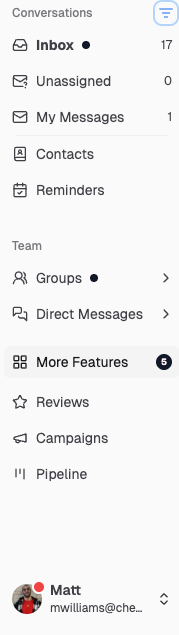
Here’s how the sidebar customization works in Chekkit based on what you’re seeing:
How to find/add extra features to the sidebar
- Go to “More Features”
- On the left sidebar, click “More Features +”
- This opens the full list of available modules
- Pin features to the sidebar
- In the right-hand (pop-up) panel, each feature has a pin icon
- Click the pin next to any feature (e.g., Campaigns, Pipeline, Invoices)
- Once pinned, it will appear on your main sidebar for quick access
- Unpin features
- If something is already in your sidebar and you don’t want it there:
- Go back to More Features
- Click the pin again to remove it from the sidebar
- Order/organization (important note)
- The sidebar order is typically fixed by category
-
You can choose what appears, but not fully drag-and-drop reorder everything
What’s actually happening behind the scenes
- The sidebar = your pinned shortcuts
- “More Features” = full feature library
- Pins = toggle visibility in sidebar

“Click ‘More Features’ on the sidebar, then use the pin icon next to any feature you want to show. That will add it to your main sidebar for easy access.”
* * *
Hopefully, this helps answer your questions, but if you have any difficulties or other questions, please get in touch with us at support@chekkit.io!