.png)
How to Pin Conversations in Chekkit
Pinning a conversation keeps important customer messages easy to find in your Messenger inbox. This is useful for priority customers, active issues, or conversations your team needs to monitor closely.
How to pin a conversation
- Go to the Inbox.
- Find the conversation you want to pin.
- Hover beside the customer’s name to make the pin icon appear.
- Click the pin icon.
- Choose one of the available options:
- Pin for me
-
Pins the conversation only in your own Inbox view. Pins that are only pinned for you will appear grey.

-
- Pin for everyone
-
Pins the conversation for all users on the account. Pins that are pinned for everyone will appear red.

-


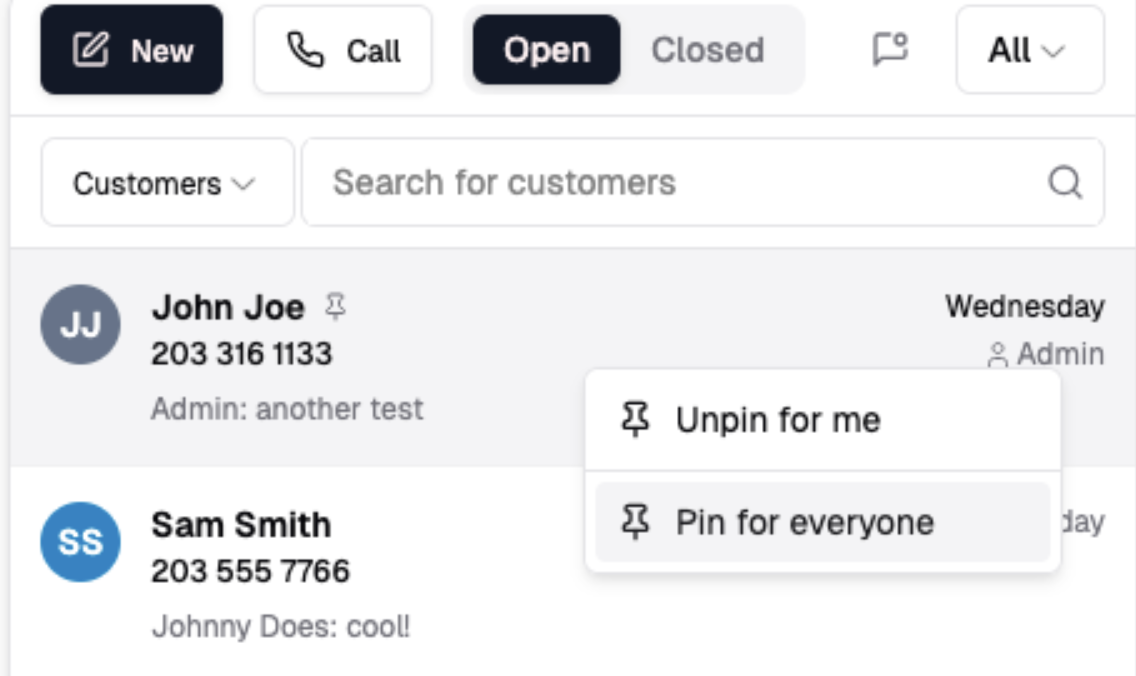
Note: Once pinned, the conversation will stay near the top of your inbox for easier access.
How to unpin a conversation
- To remove a pin, click the pin icon (or right-click the conversation again) and select Unpin for me.
Important note
Pinning a conversation does not change the conversation status, assignment, tags, or customer details. It only makes the conversation easier to find in the inbox.