.png)
Connect & Manage Google Local Services Ads (LSA) Leads
The Local Services Ads (LSA) integration allows you to sync leads from your Google LSA account directly into Chekkit. This helps you track, manage, and follow up with inbound leads—especially phone call leads—without switching platforms.
Once connected, new LSA leads will automatically appear as conversations in your Inbox.
What This Integration Does
- Syncs incoming LSA leads into Chekkit in real time
- Creates a contact and conversation for each lead
- Displays key lead details (service, time, phone number, etc.)
- Allows your team to follow up and manage leads in one place
Before You Start
Make sure you have:
- Admin access to your Chekkit account
- Admin access to your Google Business Profile
- An active Local Services Ads account
How to Connect LSA
-
Go to Settings → Google
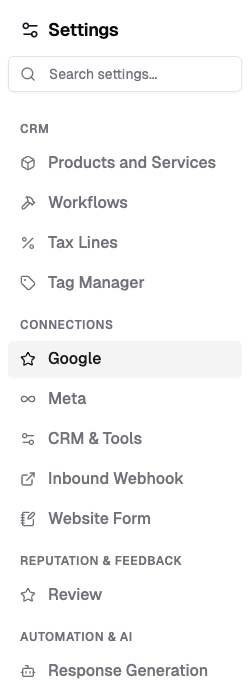
- Under Google Settings, ensure your Google My Business account is connected
- Locate Local Services Ads (LSA)
- Click Connect
- Follow the Google authentication flow
- Select the correct LSA account
Once connected, you’ll see your account listed as Connected.

Where to Find LSA Leads
After setup, LSA leads will appear in:
- Conversations -> Inbox
- As a new or existing contact
Each lead will include a system-generated message with details like:
- Lead type (e.g., phone call)
- Status
- Service requested
- Date and time received
- Customer phone number
Example of an LSA Lead
When a lead is received, you’ll see something like:

This message acts as a record of the lead inside the conversation thread.
Managing LSA Leads
Once a lead is in Chekkit, you can:
- Assign the conversation to a team member
- Tag the lead for tracking (e.g., “LSA”)
- Follow up via SMS or call
- Create an opportunity (if using CRM features)
- Add internal notes
Disconnecting LSA
To disconnect the integration:
- Go to Settings → Google
- Find Local Services Ads (LSA)
- Click Disconnect
This will stop new leads from syncing, but existing conversations will remain.
Troubleshooting
Leads are not appearing:
- Confirm your Google account is still connected
- Ensure the correct LSA account is selected
- Check that your LSA campaign is active
Missing or delayed leads:
- Some delays can occur depending on Google’s delivery
- Try reconnecting the integration
Best Practices
- Assign LSA leads quickly to reduce response time
- Use tags to track LSA performance
- Follow up immediately; LSA leads are high intent
- Combine with automation or reminders for faster handling
* * *
Hopefully, this helps answer your questions, but if you have any difficulties or other questions, please get in touch with us at support@chekkit.io!