.png)
Group texting in Messenger
Group texting lets you message up to 8 customers in one shared text thread. Everyone sees the same messages on their phones, and replies from anyone in the group come back to a single conversation in your Inbox — handy for couples, families, or anyone who needs to stay in the loop together.
Before you start
- Group texting is available on US and Canada (+1) numbers only.
- Everyone you add needs a mobile number in Chekkit — email-only contacts won't work.
- Same consent rules as regular texting apply. See Messaging Consent.
This isn't the same as Group Chat in the sidebar — that's for your team, not customers.
Start a group text
- Go to Messenger → Inbox and click New.
- In the To: field, search for contacts or add a new customer with a mobile number.
- Add at least 2 people, up to 8, then type your message and send.
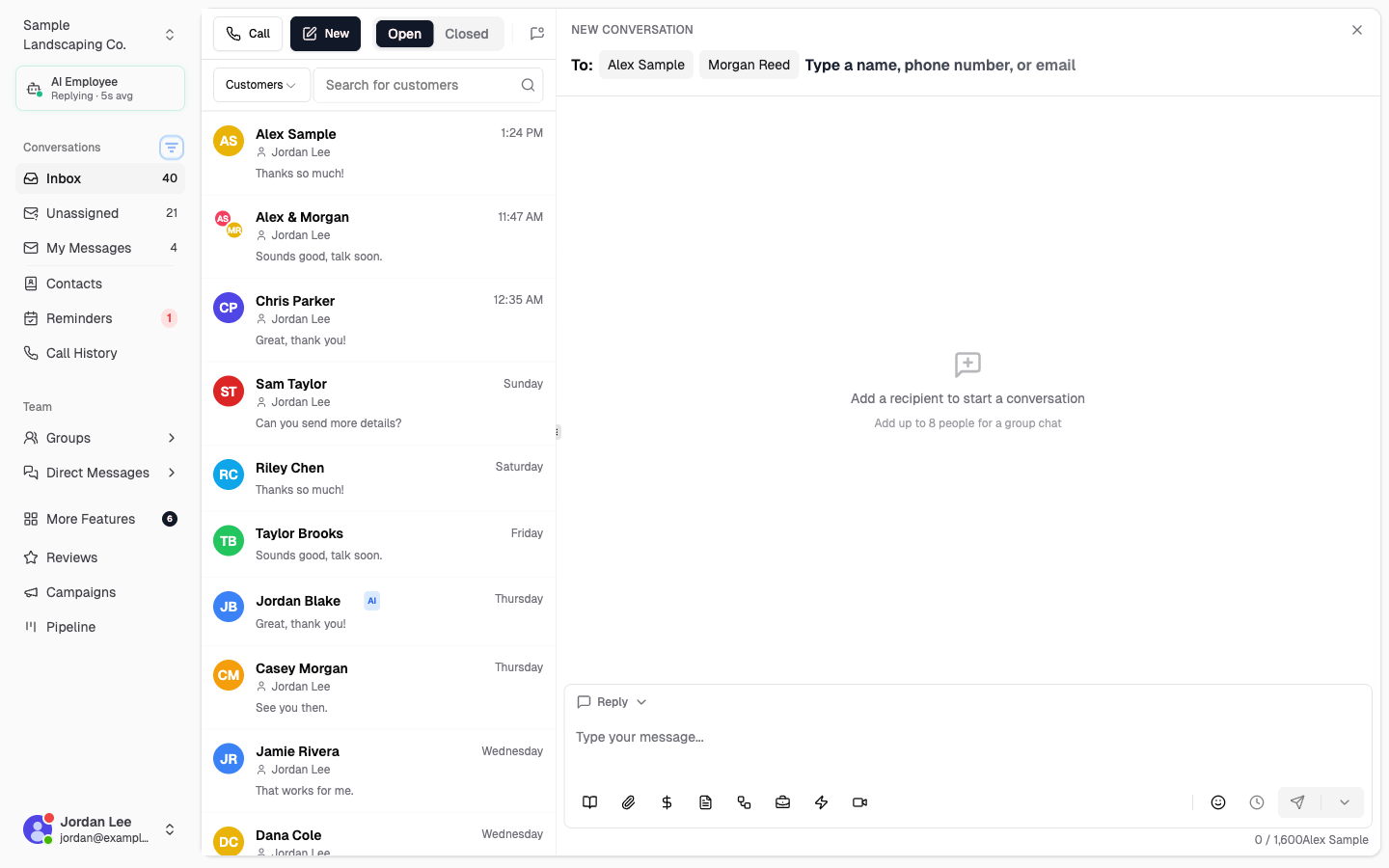
That's it — Chekkit handles the setup on your first group send. If you can only add one person in To:, group texting may not be on your account yet. Email support@chekkit.io and we can help.
Add people from a one-on-one conversation
Already texting one customer and want to bring someone else in? Open that one-on-one conversation, click the ⋮ menu, and choose Add people. Chekkit opens a new compose screen with them already added — add whoever else you need and send.
Add people only shows up on one-on-one threads. Once a group is already going, you can't add or remove people from that thread — start a new group if you need a different set of people.
What a group thread looks like
Group threads live in your Inbox like any other conversation. The header shows everyone on the thread (or a name you've set), and replies from anyone in the group land in the same place.
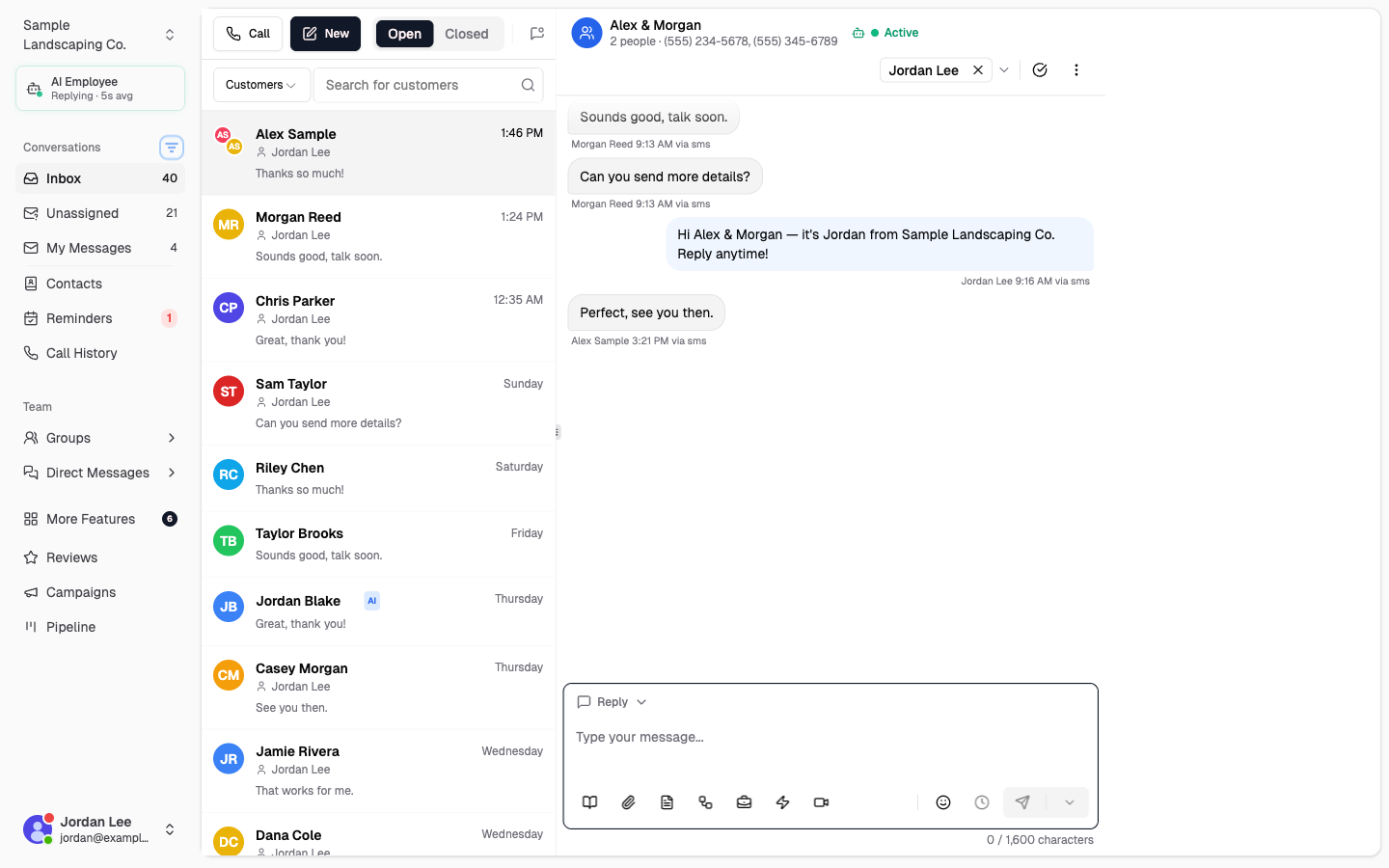
You can click the name at the top of a group thread to rename it (like Smith family). If you skip that, Chekkit shows everyone's names instead.
Good to know
- Customers get a normal group text on their phone — they see your messages and each other's replies.
- Group threads show up in your Inbox like any other conversation. You can assign, pin, and close them the same way.
- In the sidebar, switch between participants to see notes, pipeline, or payment info for each person.
- You can send images and use tags like ((business)), ((me)), and ((name)) (which includes everyone's first names).
- Scheduling, payment requests, and calling aren't available in group threads yet.
- You can't add or remove people after a group is created — start a new group if you need a different set of people.
- One message to 3 people counts as 3 messages toward your monthly limit.
Group texting vs Campaigns: use group texting when a small group needs to talk back and forth together. Use Campaigns when you want to send a one-way message to a big list — recipients don't see each other, and replies don't land in a shared thread.
Having trouble?
- Can't add a second person? Your account may not have group texting yet — contact support.
- Don't see Add people? Make sure you're in a one-on-one conversation, not an existing group thread.
- Contact won't add? They probably need a valid mobile number on their contact record.
- Need more than 8 people? Split into separate groups or use a Campaign.
- Customer stopped getting texts? They may have replied STOP — check their contact record.
Need help?
Email support@chekkit.io with your business name and we'll take a look.