.png)
Using Group Chat
Group Chat is built-in messaging for your team inside Chekkit. Use it for project updates, shift handoffs, quick questions, and anything you’d rather keep off customer channels — without leaving the dashboard.
This is different from group texting in Messenger, which is for messaging customers by SMS.
Open Group Chat
- In the left sidebar, click Group Chat.
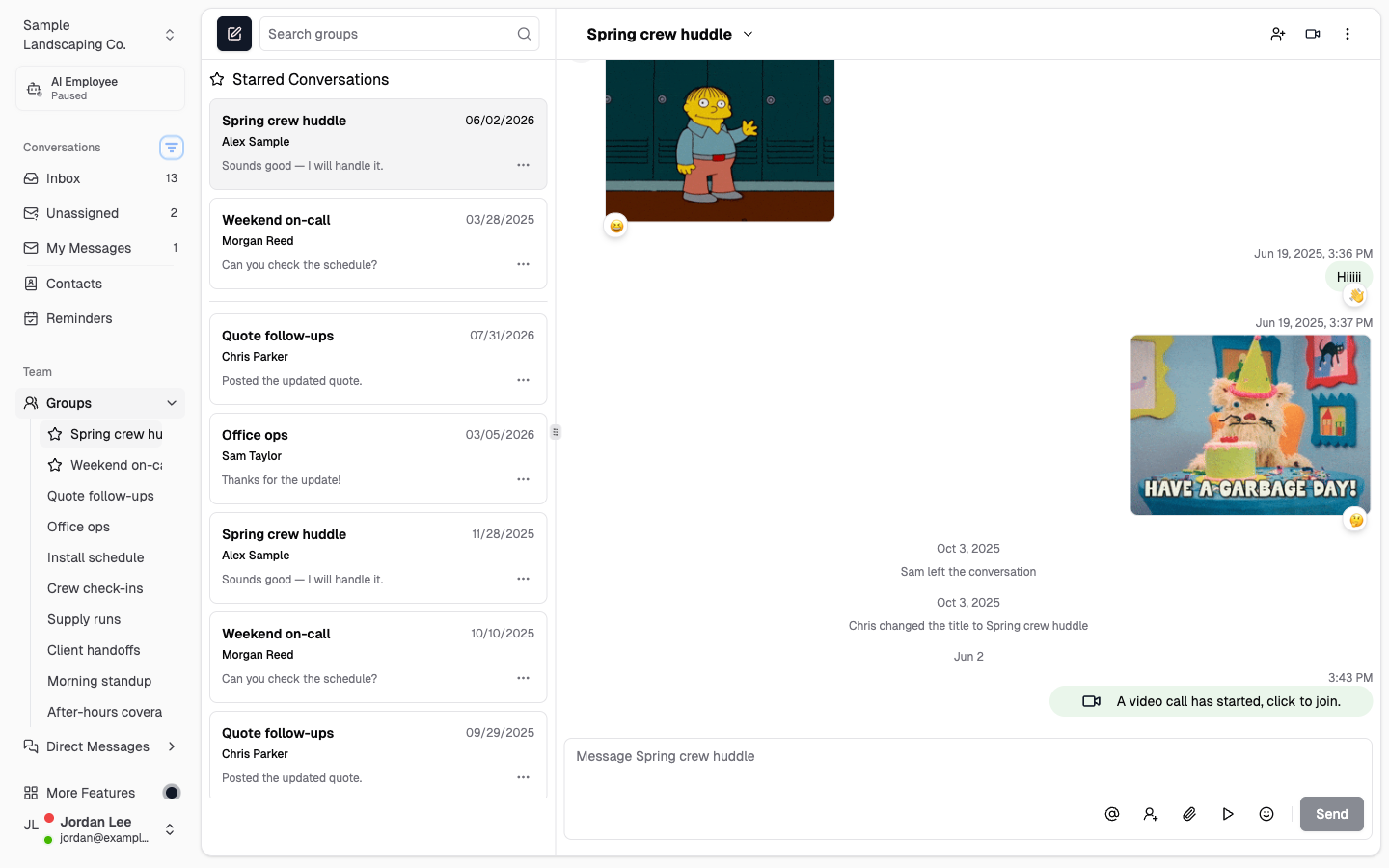
- You’ll see your team conversations. Use the list to switch between chats.
Groups and direct messages
Group Chat has two kinds of conversations:
- Group chats — three or more people (you plus at least two teammates). Groups have a title and shared notes, members, and attachments.
- Direct messages — a private 1:1 chat with one teammate.
Start a new chat
- Open Group Chat.
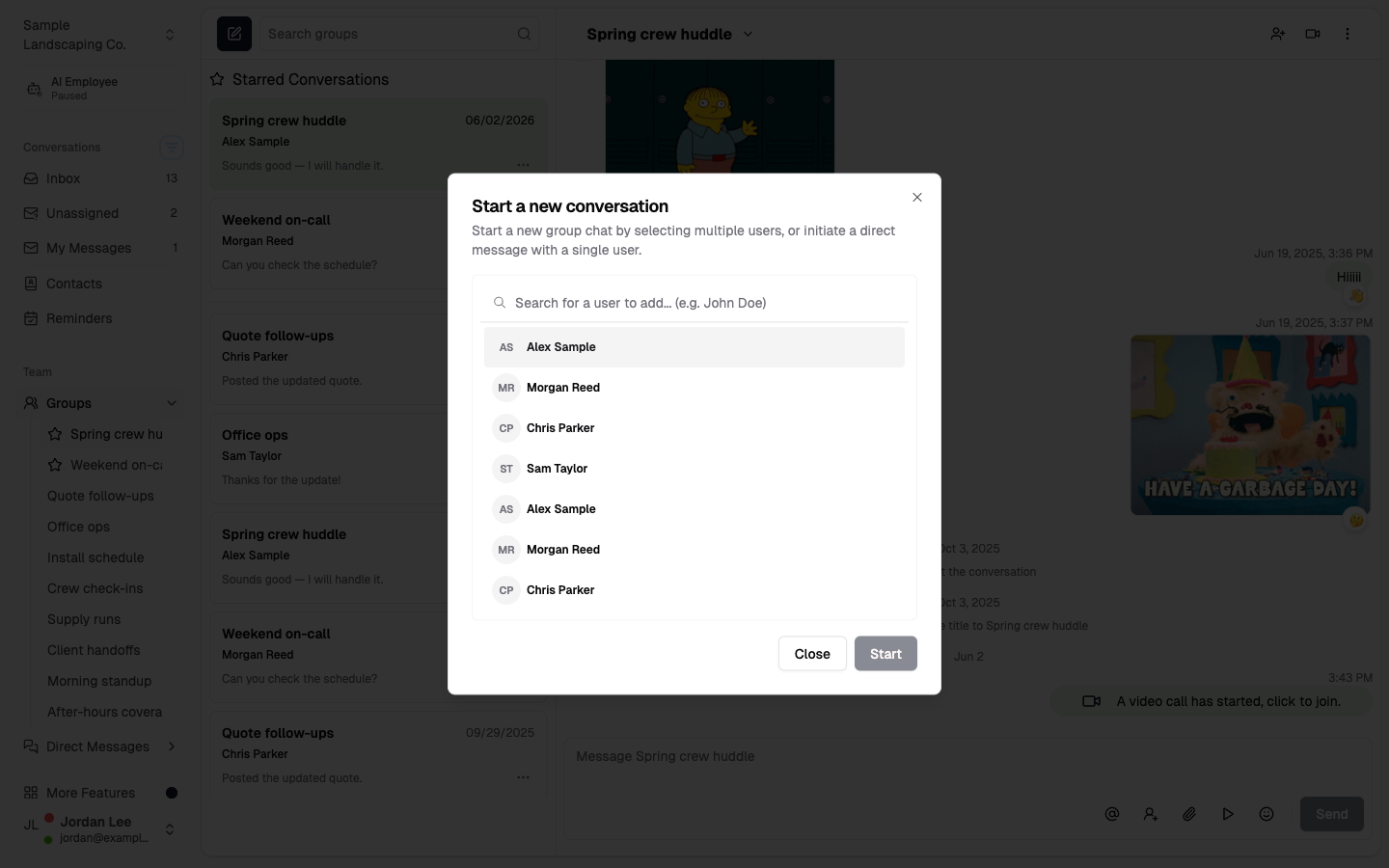
- Click the New Chat button (pen icon) at the top of the conversation list. You can also press ⌘K (Mac) or Ctrl+K (Windows).
- Search for teammates and select who to include.
- Then:
- One person — click Start to open a direct message.
- Two or more people — click Next, enter a group title (or keep the suggested one), then click Start.
You can only add active teammates from your Chekkit account — customers aren’t available in Group Chat.
Send messages and files
Open a conversation and type in the message box at the bottom. You can also attach files (including images and video) when you need to share something with the group.
Manage a group chat
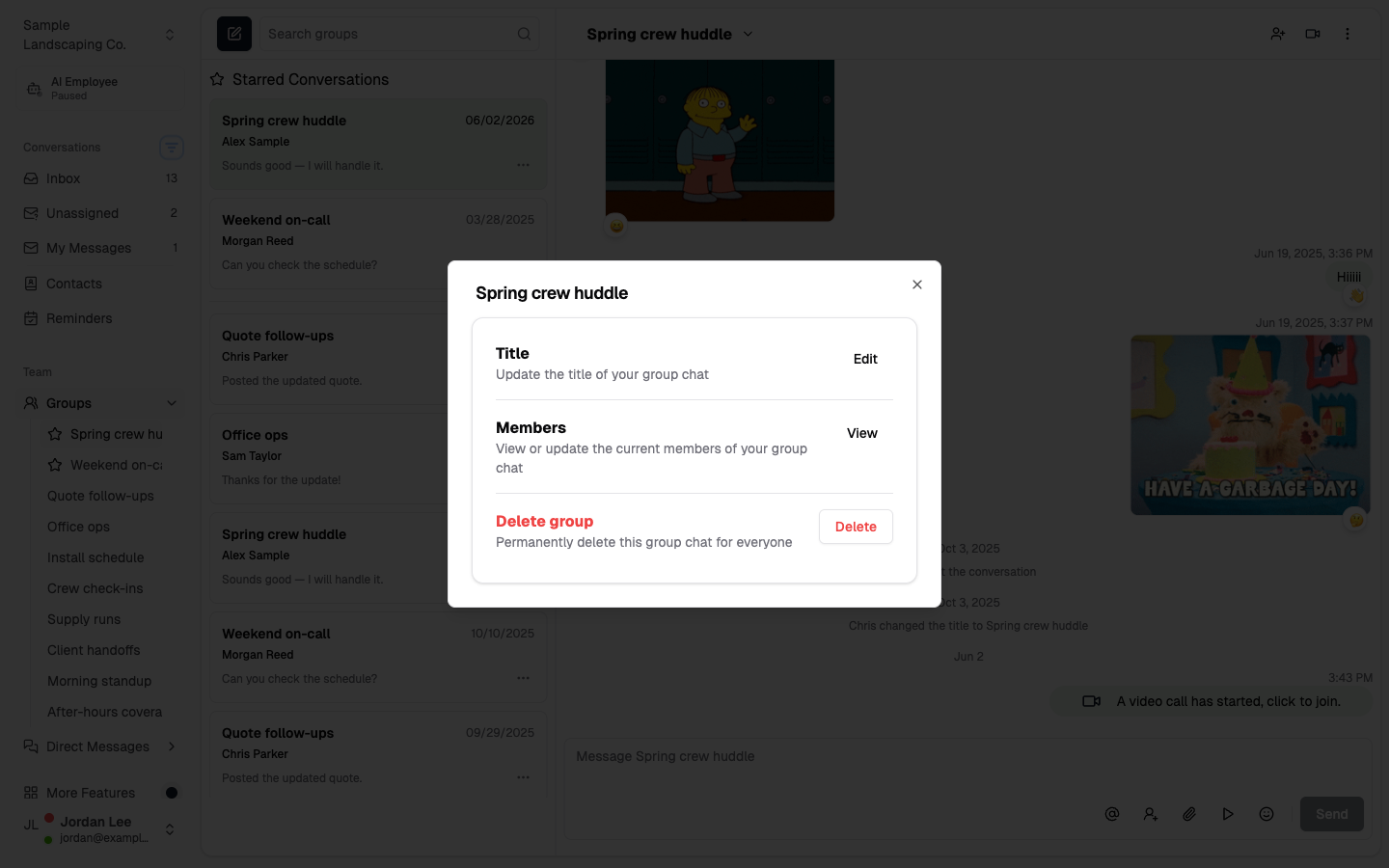
Open a group, then click the group name at the top of the conversation to open group details. From there you can:
- Edit the title — click Edit, update the name, then Save.
- View members — see who’s in the group.
- Delete the group — permanently remove it for everyone (messages and attachments included). This can’t be undone.
To add people later, click the Add members (person +) icon in the top bar of the open group, select teammates, and click Add.
Notes, attachments, and details
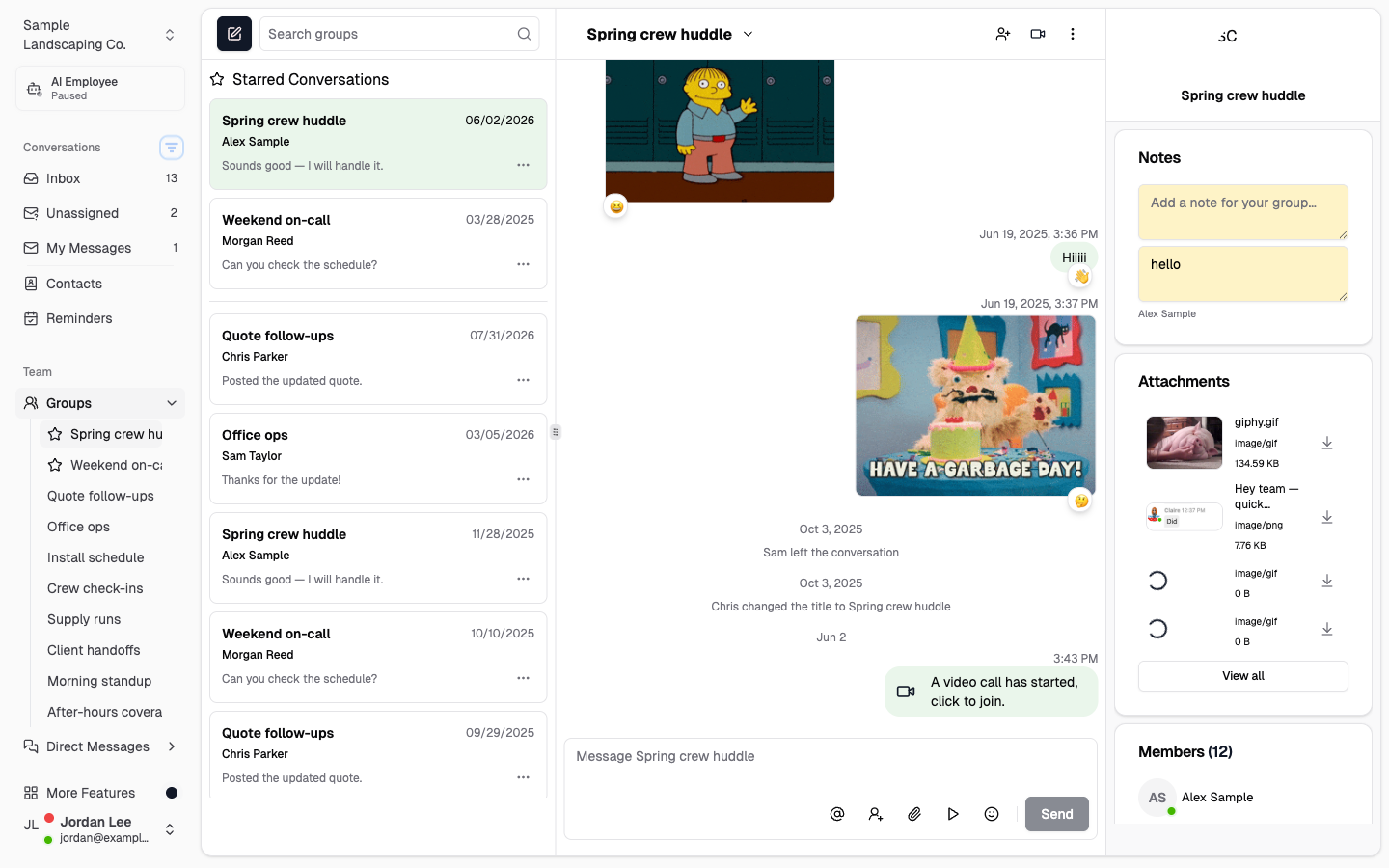
Open a conversation, then click the ⋮ (details) icon in the top bar to open the side panel. There you’ll find:
- Notes — shared notes for the chat (handy for context that shouldn’t live in the message thread)
- Attachments — files shared in the conversation
- Members — who’s in the group (group chats only)
Star, mute, or leave
In the conversation list, click the ⋮ menu on a chat to:
- Star Conversation — pin it to your Starred list at the top
- Mute Conversation — quiet notifications for that chat
- Leave Conversation — remove yourself from a group (groups only; the chat stays available for everyone else)
Start a video chat
- Open a group chat or direct message.
- Click the video icon in the top bar.
- Confirm Start Video Chat.
Chekkit posts a join link in the conversation so teammates can hop on the call.
Good to know
- Group Chat is for your internal team only — not customers.
- Leaving a group removes you. Deleting a group removes it for everyone.
- Anyone in a group can rename it, add members, or delete it.
- Unread chats show a badge in the sidebar so you don’t miss team messages.
Having trouble?
- Don’t see Group Chat? It may not be enabled on your account — contact support.
- Can’t find a teammate? They need an active Chekkit user account on your business.
- Looking for customer group texts? That’s Group texting in Messenger, not Group Chat.
Need help?
Email support@chekkit.io with your business name and we’ll take a look.