.png)
Connect FareHarbor to Chekkit
Connect FareHarbor to Chekkit to send automatic texts when bookings are confirmed, before trips start, and after visits — using ready-made automations you can turn on in a few clicks.
What it does
- Sends booking events from FareHarbor into Chekkit so you can automate customer texts.
- Offers one-click quick-setup automations — booking confirmation, pre-trip reminder, and review request — with messages and customer details filled in for you.
- Lets you fine-tune any automation later from Automation → Events / Triggers.
Before you start
- You need owner or location admin access in Chekkit.
- FareHarbor webhooks are enabled by their support team — Chekkit prepares the email for you; you send it to FareHarbor.
- Have your FareHarbor account details handy (business name and address are included in the request email).
How to connect
- In Chekkit, go to Automation → Events / Triggers.
- Type FareHarbor where it asks which software should send the texts, then click Connect FareHarbor. If you already have apps, click New App, type FareHarbor, and click Connect FareHarbor.
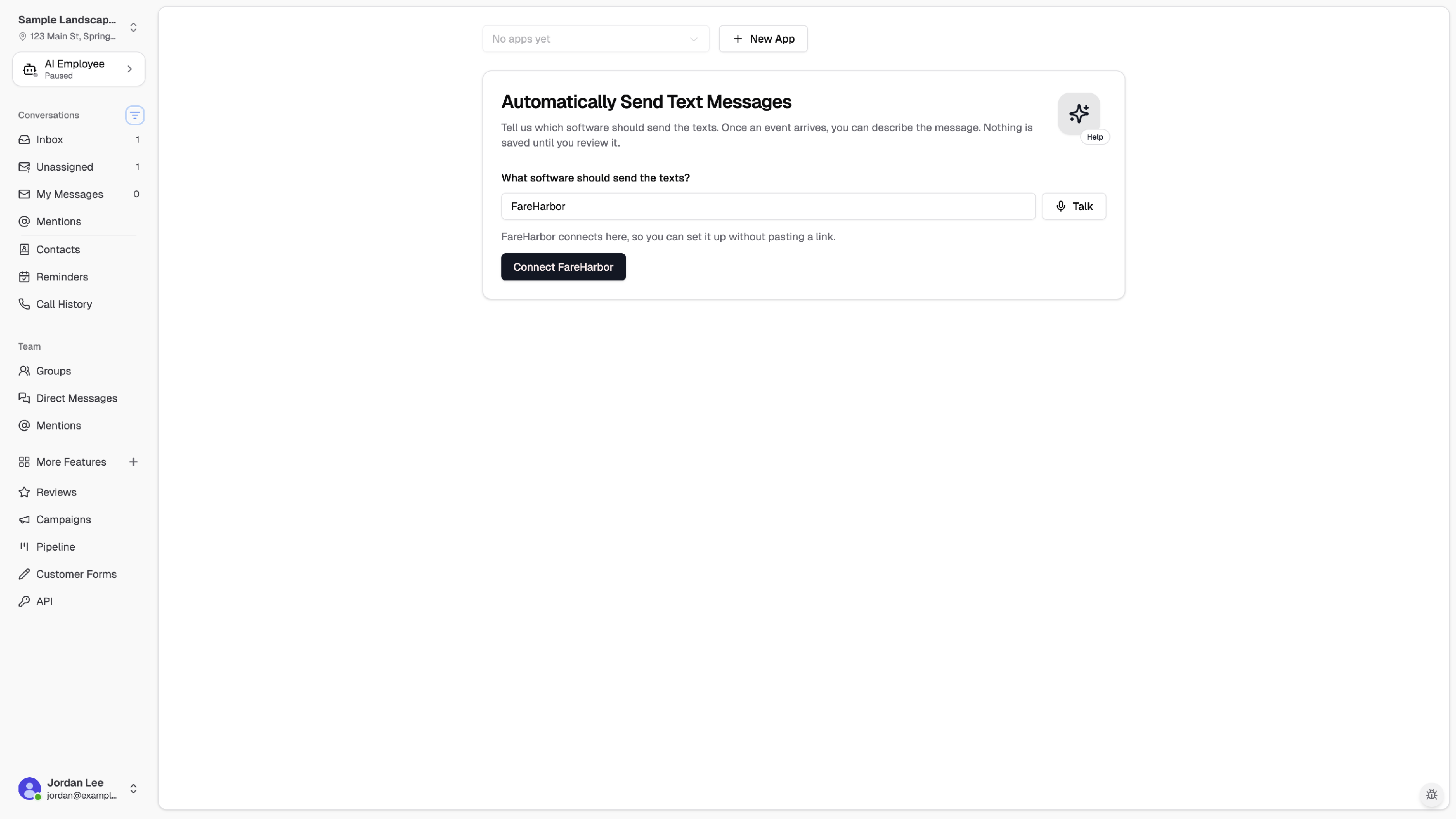
You can also start from Settings → Connections → CRM & Tools: find FareHarbor under Business Tools & Integrations and click Connect.
Step 1 — Connect
- Choose an app where your FareHarbor automations will live. Chekkit picks one for you by default; you can use an existing app or create a new one named FareHarbor.
- Click Email FareHarbor support. Chekkit opens a pre-filled email to FareHarbor with your webhook URL and cc's support@chekkit.io. Send the email.
- Wait for FareHarbor to confirm your webhook is active. Automations will not receive booking data until FareHarbor enables the webhook on their side.
- Click Next: set up automations when you're ready to add automations (you can also do this later).
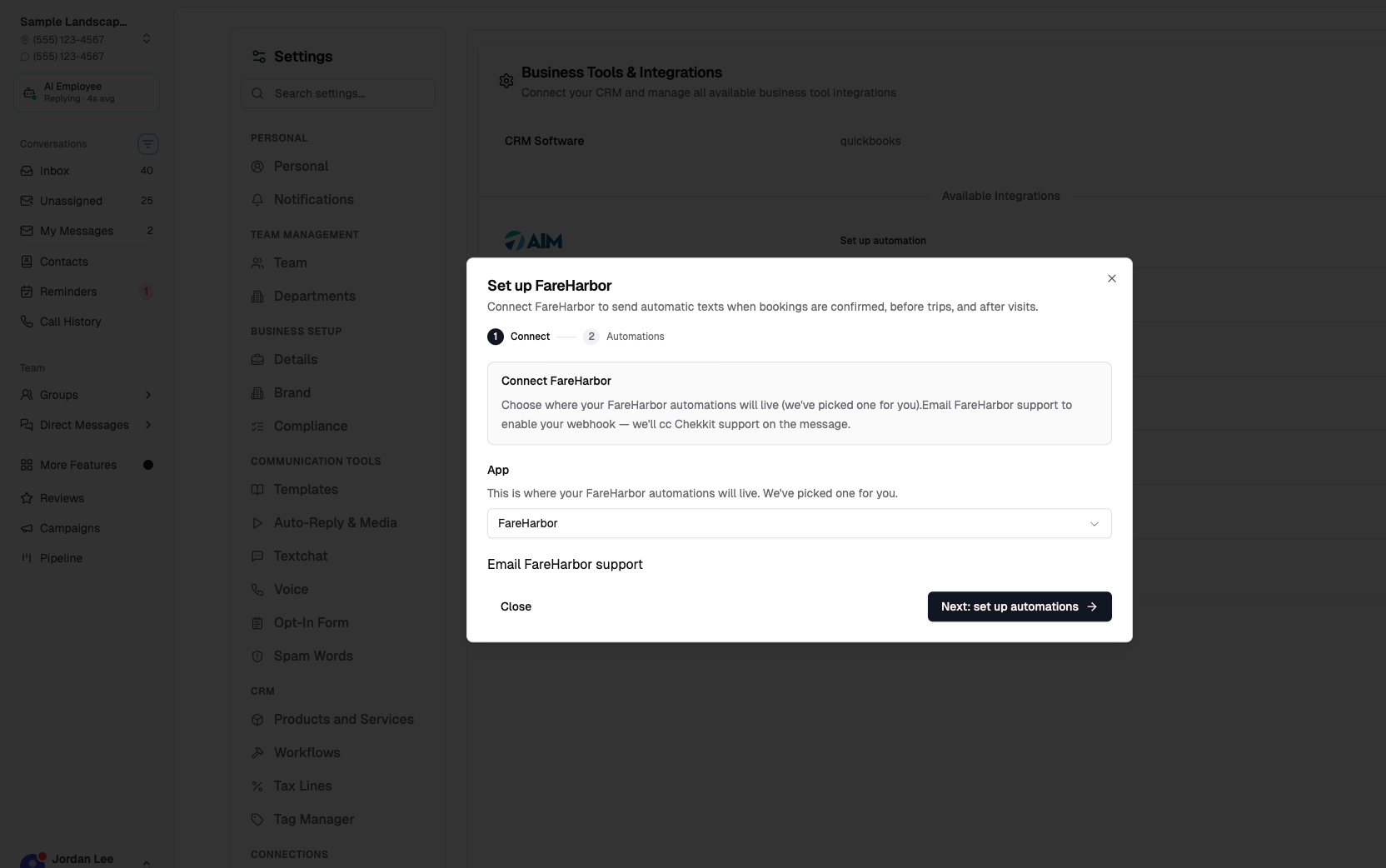
If you previously connected FareHarbor to a different Chekkit app, use Email FareHarbor to disable old webhook before enabling the new URL.
Step 2 — Automations
Pick one or more ready-made templates and click Turn on automation. Chekkit creates and activates each automation for you.
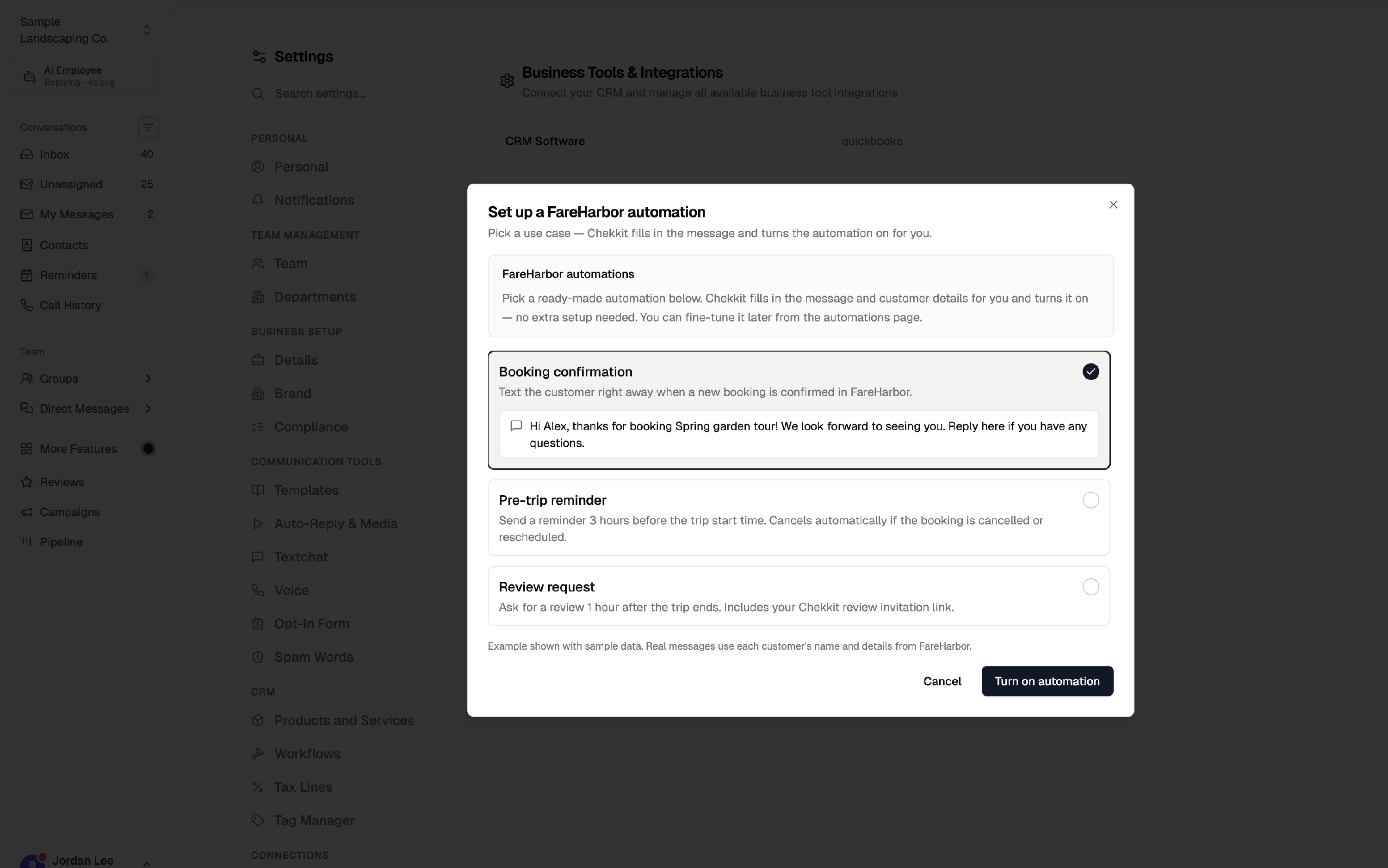
Quick-setup automations
| Automation | When it sends | What the customer gets |
|---|---|---|
| Booking confirmation | When a booking is confirmed in FareHarbor | A thank-you text right away with the activity name (e.g. "Sunset Kayak Tour"). |
| Pre-trip reminder | 3 hours before the trip start time | A friendly reminder. Cancels automatically if the booking is cancelled or rescheduled. |
| Review request | 1 hour after the trip ends | A review invitation that includes your Chekkit review link. Cancels automatically if the booking is cancelled or rescheduled. |
Example confirmation message (with sample data):
Hi Alex, thanks for booking Sunset Kayak Tour! We look forward to seeing you. Reply here if you have any questions.
Real messages use each customer's name and booking details from FareHarbor.
After connecting
- When FareHarbor is connected, stay on Events / Triggers and turn on the templates you want. From settings, the FareHarbor row shows Connected. Click Set up automation there to add templates from settings instead.
- Click the automations icon, or open the app on Events / Triggers, to edit timing, wording, or rules.
- You can add templates one at a time; already-added templates show as Added in the picker.
Disconnect FareHarbor
- In Business Tools & Integrations, open FareHarbor and choose Remove.
- Email FareHarbor to disable your webhook if you no longer want booking events sent to Chekkit.
- Confirm removal in Chekkit. Existing automations remain but will not run until FareHarbor is set up again.
Troubleshooting
- Automations aren't firing. Confirm FareHarbor enabled your webhook (check your email thread with FareHarbor support). New automations start once matching booking events arrive.
- Wrong customer name or phone. Open the automation on Events / Triggers and check that names and phone numbers are coming from your FareHarbor booking.
- Pre-trip or review texts sent at the wrong time. Edit the automation's timing rule — defaults are 3 hours before start and 1 hour after end.
- I connected FareHarbor before but switched apps. Disable the old webhook URL with FareHarbor before enabling a new one.
Related articles
- How can I automatically send review invitations?
- Send Events to Chekkit Using Webhooks
- Messaging Consent
Need help?
If you're having trouble connecting FareHarbor or setting up automations, email support@chekkit.io with your business name and a short description of the issue.