.png)
Connect STORIS to Chekkit
Connect STORIS to Chekkit to text customers automatically after an order is delivered or picked up — using ready-made automations you can turn on in a few clicks.
What it does
- Connects your STORIS account to Chekkit with API credentials from the STORIS portal.
- Offers one-click quick-setup automations for delivery and pickup follow-ups, review requests, and protection-plan reminders.
- Lets you edit any automation later from Automation → Events / Triggers.
Before you start
- You need owner or location admin access in Chekkit.
- In the STORIS API portal, open Restricted Users and create (or open) an API user for Chekkit. Have its Client ID and Client Secret ready.
- If you run more than one store on one STORIS system, have this store’s STORIS location ID ready (optional).
How to connect
- In Chekkit, go to Automation → Events / Triggers.
- Type STORIS where it asks which software should send the texts, then click Connect STORIS. If you already have apps, click New App, type STORIS, and click Connect STORIS.
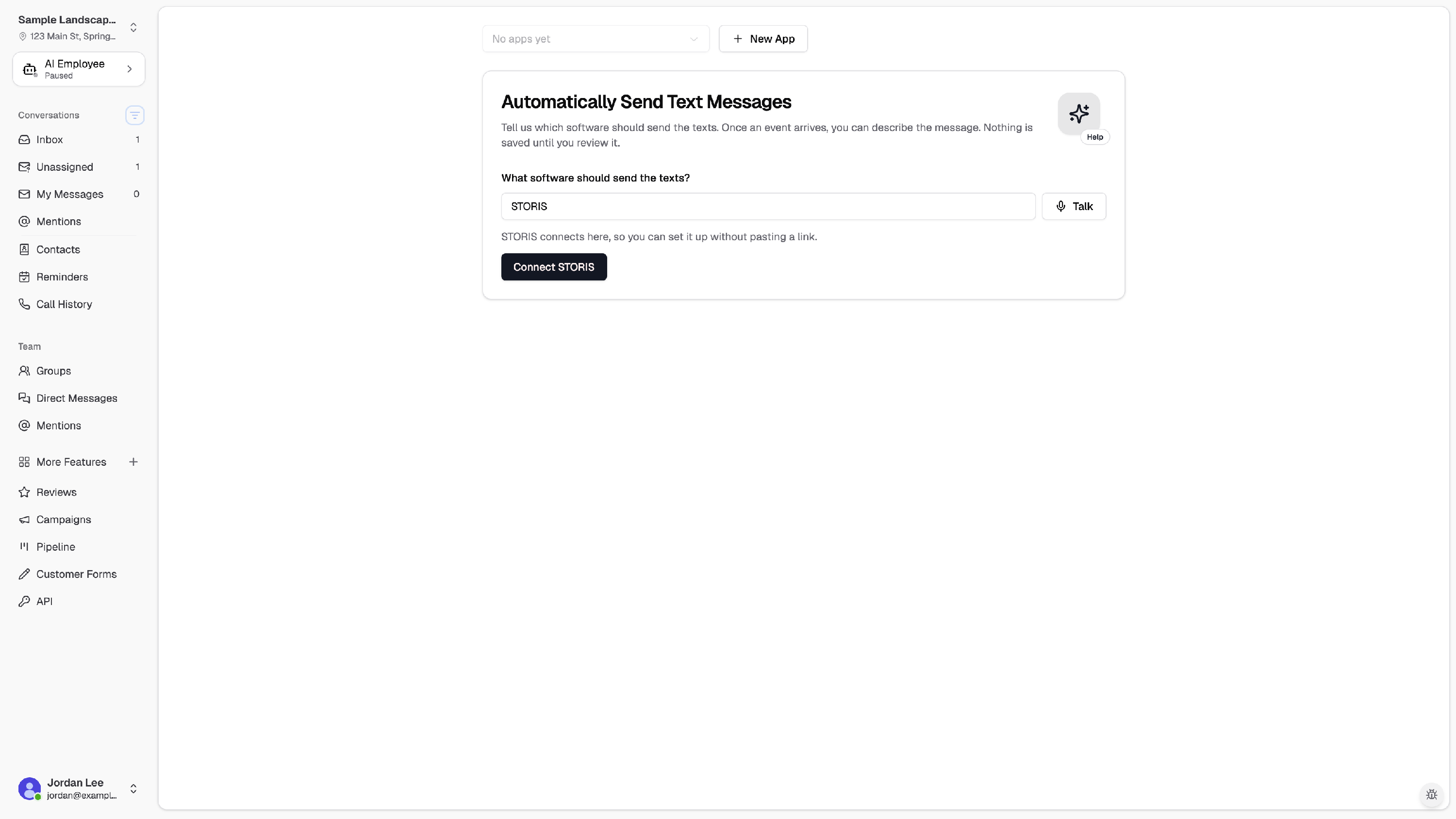
You can also start from Settings → Connections → CRM & Tools: find STORIS under Business Tools & Integrations and click Connect. After it connects, the row shows Connected.
Connect STORIS
- Choose an app where your STORIS automations will live (Chekkit picks one by default).
- Paste your STORIS Client ID and Client Secret. Optionally enter this store’s STORIS location ID.
- Click Connect STORIS, then Next: set up automations when you’re ready.
If Chekkit shows a warning about notifications, click Retry notifications so automations can run.
Quick-setup automations
After STORIS is connected, stay on Events / Triggers. Pick a category and turn on the templates you want. From settings, click Set up automation on the STORIS row to open the same list.
- Deliveries & pickups — confirm when an order is delivered, picked up, shipped, or taken with the customer. Includes a recommended combined “order complete + review ask” option.
- Reviews — ask for a review after the customer has their order (includes your Chekkit review link).
- After the sale — remind customers about a protection plan when one is on the order.
Pick a template, click Turn on automation, and Chekkit creates and activates it. Already-added templates show as Added.
Disconnect STORIS
- In Business Tools & Integrations, open STORIS and choose Remove.
- Confirm. Automations stay in place but won’t send until you reconnect (you’ll need to enter your credentials again).
Troubleshooting
- Connect fails. Recheck the Client ID and Client Secret from STORIS Restricted Users.
- Customers aren't receiving texts. Confirm an automation is turned on and the customer has a valid phone number in STORIS.
- Need a different message? Edit the automation on Events / Triggers.
Related articles
Need help?
Email support@chekkit.io with your business name and a short description of the issue.