.png)
Connect Lightspeed to Chekkit
Connect Lightspeed (Dealer Direct) to Chekkit to text customers automatically after a sale or service — using ready-made automations you can turn on in a few clicks.
What it does
- Links your Lightspeed dealer account to Chekkit with your Dealer ID (CMF) and Web Service username/password, so completed sales and service jobs can trigger texts.
- Looks for recent finalized sales and cashiered repair orders in Lightspeed on a regular schedule.
- Offers one-click quick-setup automations for review requests after a sale or service, plus a short thank-you after a sale.
- Lets you fine-tune any automation later from Automation → Events / Triggers.
Before you start
- You need owner or location admin access in Chekkit.
- In Lightspeed, open Third Party Access (3PA). The username and password Chekkit needs are in the Your Account box on that screen (use Generate New Password if you do not have one yet). That is separate from the username you use to log in to Lightspeed. You also need the Dealer ID (CMF) shown there.
- On that same screen, subscribe to these three data sets:
- Customer
- Deal Summary — completed sales
- Service Summary — cashiered repair orders
- Choose the Summary sets, not Detail. Detail sets cost more, and Chekkit does not use them. You do not need Deal Detail, Invoice, General Ledger, or Open Deal / Open Service.
- Lightspeed charges its own one-time activation fee to turn on third-party access, plus a monthly fee for each data set. Those charges are billed by Lightspeed, not Chekkit.
How to connect
- In Chekkit, go to Automation → Events / Triggers.
- Type Lightspeed where it asks which software should send the texts, then click Connect Lightspeed. If you already have apps, click New App, type Lightspeed, and click Connect Lightspeed.
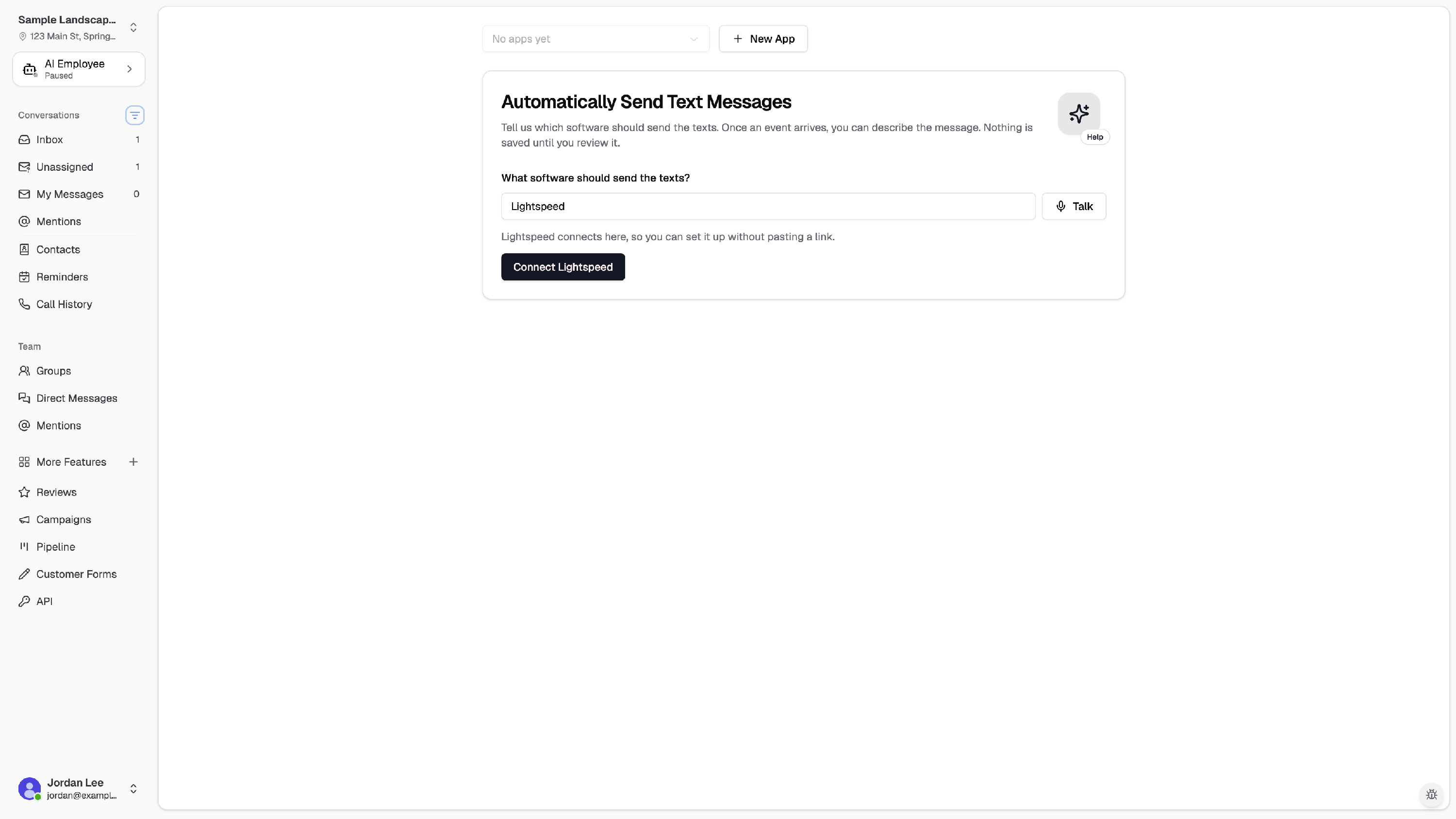
You can also start from Settings → Connections → CRM & Tools: find Lightspeed under Business Tools & Integrations and click Connect. After it connects, the row shows a prompt to set up an automation (or Connected once you have one).
Connect Lightspeed
- Choose an app where this connection will live. Chekkit picks one for you by default; you can use an existing app or create a new one named Lightspeed.
- Enter your Lightspeed Dealer ID (CMF).
- Enter your Lightspeed Web Service API username and API password.
- Click Connect Lightspeed.
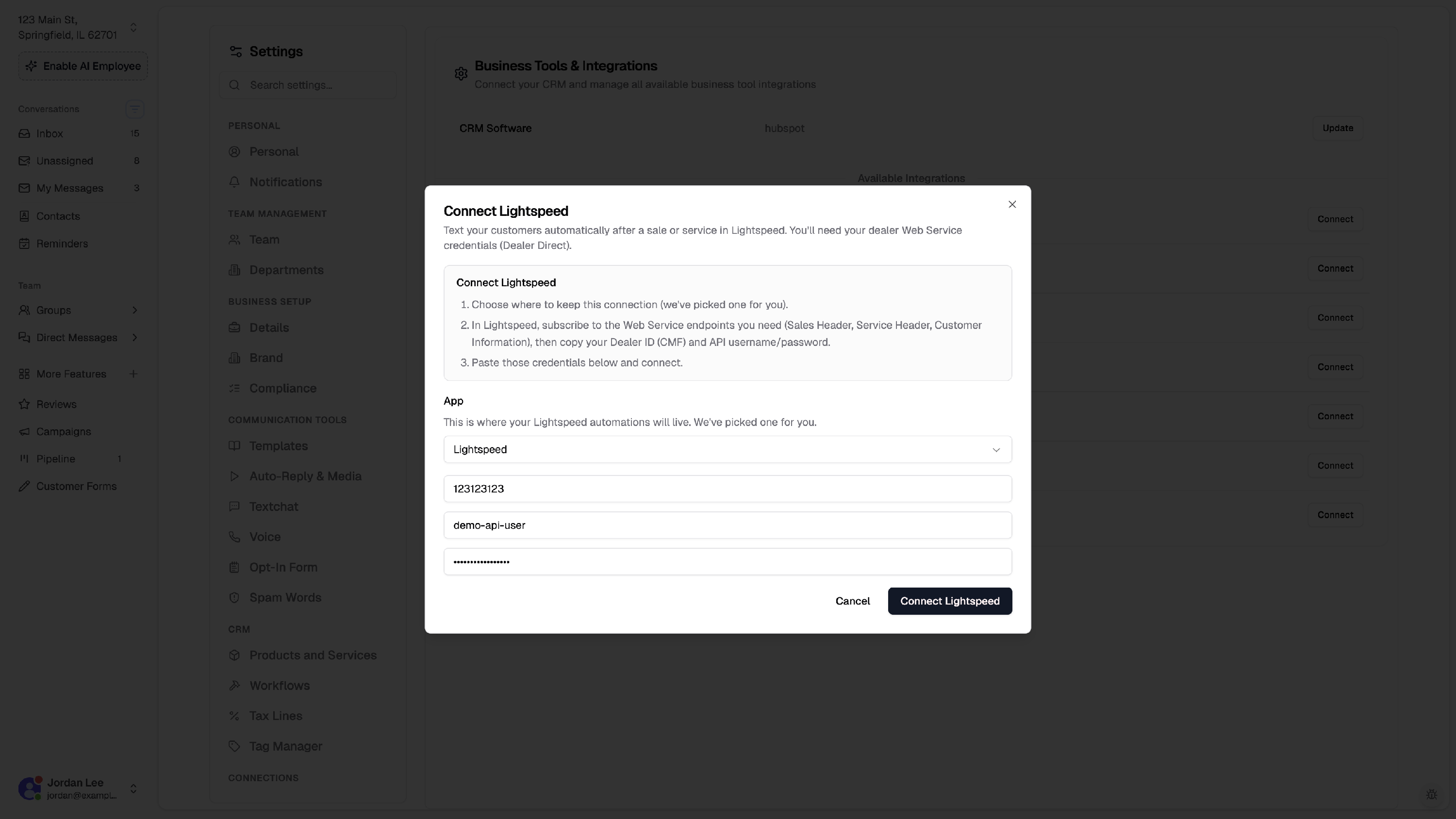
When the connection succeeds, you stay on Events / Triggers.
Quick-setup automations
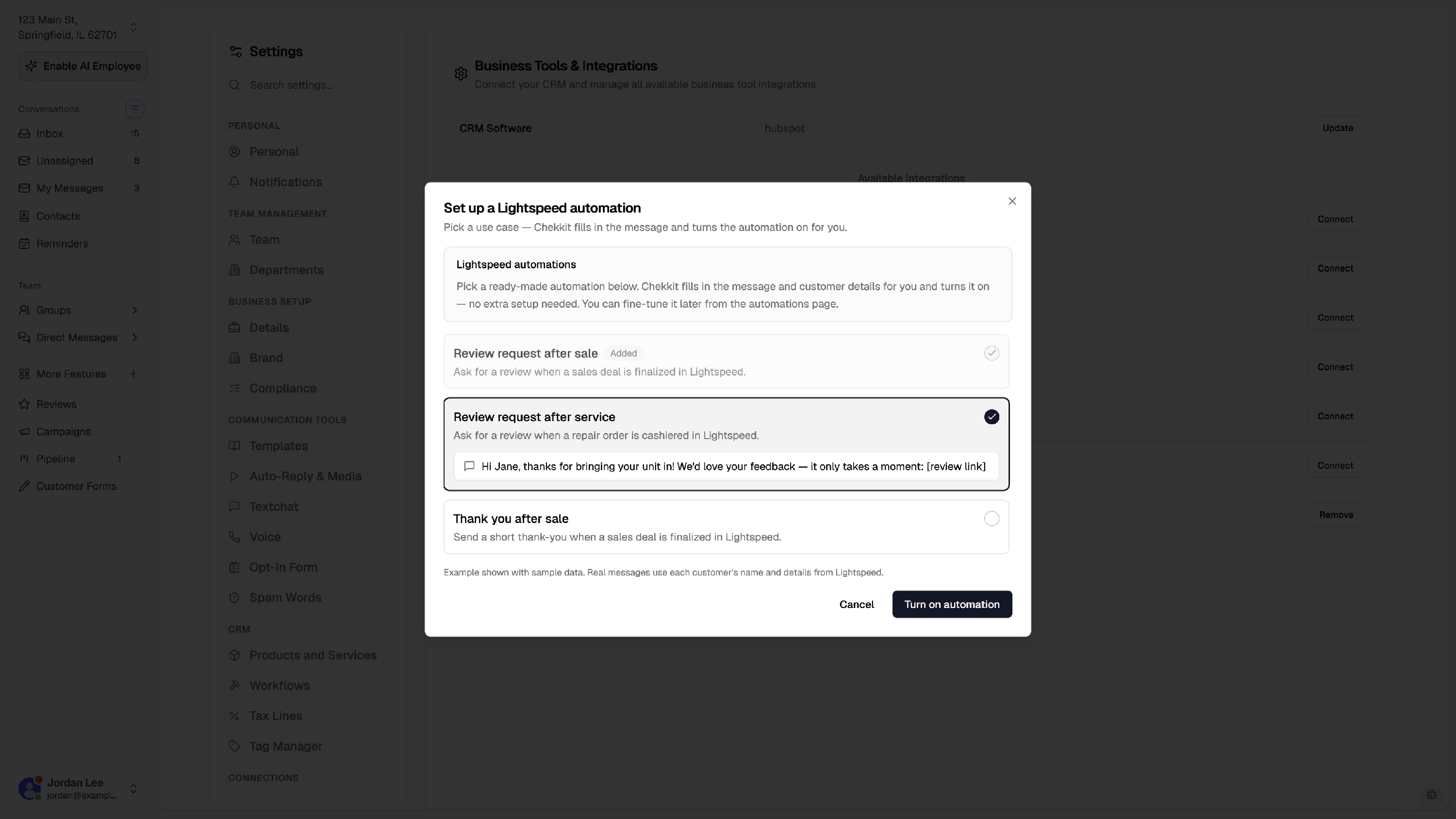
After Lightspeed is connected, Events / Triggers lists the automations you have not turned on yet. Click Turn on next to one, then Turn on automation. From settings, click Set up automation (or Add automation if you already have one) on the Lightspeed row to open the same list.
| Automation | When it sends | What the customer gets |
|---|---|---|
| Review request after sale | When a sales deal is finalized in Lightspeed | A thank-you and review link. |
| Review request after service | When a repair order is cashiered in Lightspeed | A thank-you and review link. |
| Thank you after sale | When a sales deal is finalized in Lightspeed | A short thank-you and invite to reply with questions. |
Example review request after sale (with sample data):
Hi Jane, thanks for your purchase! We'd love your feedback — it only takes a moment: [review link]
Real messages use the customer’s name and phone from Lightspeed. Chekkit prefers cell phone, then home, work, or email if needed.
Pick a template, click Turn on automation, and Chekkit creates and activates it. You can add the remaining templates anytime; already-added ones show as Added.
After connecting
- On Events / Triggers, open an automation to view, edit, or pause it.
- Chekkit checks Lightspeed for recent completed sales and service jobs on a regular schedule.
- To confirm messaging works, complete a test sale or cashier a repair for a customer that has your own cell number in Lightspeed.
If Lightspeed says “Needs reconnect”
Older Lightspeed connections may only have a Dealer ID on file. Chekkit now needs your Web Service username and password so sales and service sync can run.
- On the Lightspeed row, click Reconnect.
- Confirm the Dealer ID (it’s filled in if Chekkit already had it).
- Enter your API username and password, then click Reconnect Lightspeed.
Disconnect Lightspeed
- In Business Tools & Integrations, open Lightspeed and choose Remove.
- Confirm removal in Chekkit.
- Existing automations remain but will not run until Lightspeed is connected again. You can reconnect at any time.
Troubleshooting
- Connect fails with rejected credentials. Use the Web Service username and password from Third Party Access (3PA) → Your Account, not your Lightspeed login. Confirm the Dealer ID matches the CMF on that screen, and that the Customer data set is turned on.
- Sale texts never send. Subscribe to Deal Summary. Service Detail does not include completed sales.
- The row shows Needs reconnect. Add your Web Service username and password with Reconnect — a Dealer ID alone is not enough.
- Customers aren't receiving texts. Check that the Lightspeed customer has a valid cell phone (or another phone Chekkit can use), and that the matching quick-setup automation is turned on.
- Review request after service never sends. The repair order needs to be cashiered in Lightspeed so Chekkit sees a completed service job.
- I want a different message or timing. Edit the automation on Events / Triggers, or duplicate a template and adjust the rules.
Related articles
Need help?
If you're having trouble connecting Lightspeed or setting up automations, email support@chekkit.io with your business name and a short description of the issue. Your Lightspeed/Dealer Direct contact can help with Web Service credentials if needed.